 DOHOO
DOHOO
Scheduler Automation
Autopost Social Media: How to Simplify Scheduling and Auto-Publishing
 Vitalii
11 min read
Vitalii
11 min read
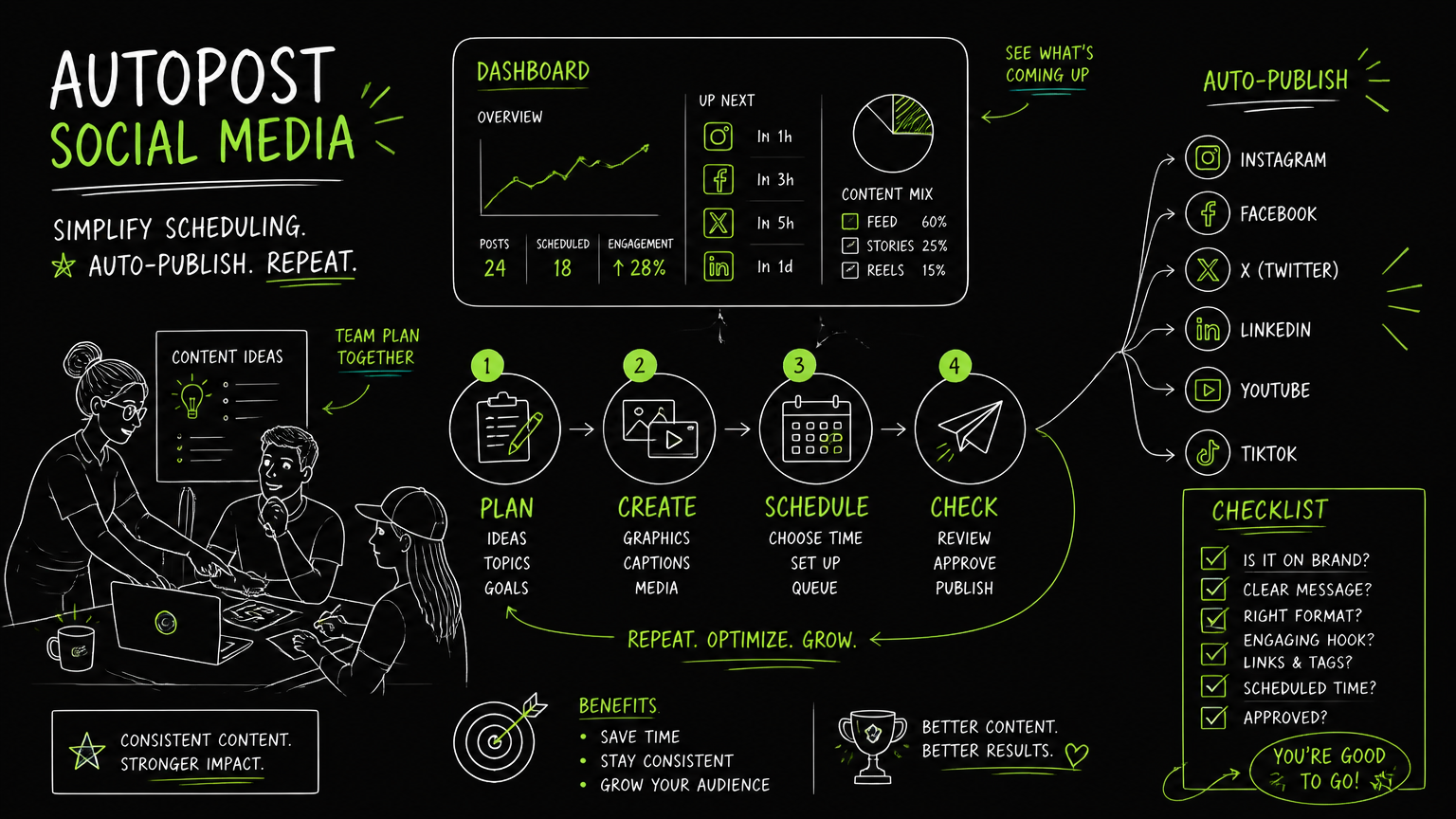
It is 4:40 p.m., the LinkedIn post is approved, the Instagram Reel is still in a drive folder, and someone just asked whether the Facebook version went out this morning. An automatic poster can remove that last-mile chaos, but only if your workflow is clear before you connect accounts. The practical answer is to treat autoposting as a publishing system, not just a queue.
This guide shows how to choose, test, and run an autopost social media workflow without creating new review, formatting, or account-management problems.
Quick Answer
Quick answer: Autopost social media means scheduling content in advance and letting a tool publish it to selected social platforms at planned times. A good automatic poster should support your required channels, account structure, media formats, approval workflow, scheduling calendar, and publishing limits without hiding failures or forcing manual rework.
How should you evaluate an automatic poster before choosing one?
The best autoposting tool is the one that fits your publishing workflow with the fewest manual exceptions.
Start with the jobs your team actually needs to complete. A small founder-led team may only need a simple weekly queue. A B2B marketing team may need multiple profiles, file management, campaign calendars, and clear ownership between content, design, and approval roles.
Use this checklist before comparing product pages.
| Need | What to check | Why it matters |
|---|---|---|
| Platform coverage | Confirm support for the social networks you publish to, such as Instagram, Facebook, LinkedIn, TikTok, YouTube, X/Twitter, Threads, or Pinterest. | A missing channel creates a manual side workflow that people eventually forget. |
| Account structure | Check whether the tool can handle multiple profiles, pages, company pages, or grouped connections. | B2B teams often manage brand, executive, regional, or client accounts separately. |
| Calendar visibility | Look for a calendar or scheduled posting view. | A queue alone is not enough when campaigns, launches, and approvals overlap. |
| Media handling | Check upload flow, file access, folders, and supported media formats. | Autoposting fails operationally when the approved creative is hard to find or upload. |
| Publishing control | Confirm whether posts can be scheduled and auto-published, not just drafted. | Some workflows still require a person to complete the final step. |
| Limits | Review scheduled post limits, upload limits, file-size limits, connected profile limits, and plan differences. | The wrong limit usually appears during a busy campaign, not during a demo. |
| Failure handling | Ask how failed posts are surfaced and who receives the alert. | Silent failures are worse than manual posting because the team assumes the work is done. |
| Review process | Decide whether copy, creative, links, and platform-specific edits are approved before scheduling. | Auto-publishing accelerates both good content and preventable mistakes. |
| Access control | Check how team members connect accounts and manage permissions. | Shared passwords and unclear ownership create avoidable security and handoff issues. |
Decision rule: If a tool saves ten minutes per post but creates a separate exception process for one important channel, it may not simplify the workflow.
The most useful evaluation question is not “Can it auto post?” It is: what still has to happen manually after scheduling?
What does a practical autopost social media workflow look like?
A reliable autoposting workflow separates planning, production, approval, scheduling, and monitoring.
Many teams try to jump from “content idea” straight to “scheduled post.” That works for occasional publishing, but it becomes fragile when multiple people touch the same campaign.
A practical B2B workflow looks like this:
Plan the campaign
- Define the campaign, launch, event, or recurring theme.
- Decide which platforms matter for each asset.
- Map any platform-specific versions, such as a LinkedIn text post, Instagram carousel, or YouTube video.
Prepare the source content
- Store approved copy, creative files, links, and campaign notes in one place.
- Give files practical names, not “final-final-v3.”
- Confirm whether the creative matches the intended platform format.
Adapt the post for each network
- Rewrite the opening line for LinkedIn if it needs a business context.
- Adjust captions for Instagram or TikTok if the asset is more visual.
- Check whether a company page, personal profile, or brand account is the right destination.
Review before scheduling
- Confirm copy, creative, links, account destination, and date.
- Review the first post in a campaign with extra care; errors often get duplicated.
Schedule in the calendar
- Add posts to a calendar view or posting queue.
- Group related posts by campaign or account if the tool supports it.
- Check the week visually, not only item by item.
Monitor after publishing
- Confirm that important posts went live.
- Investigate failed or skipped posts quickly.
- Keep notes on recurring manual fixes.
Tip: Treat the calendar as the operating view for publishing. Treat the queue as the execution layer.
A simple before/after shows the difference.
Before: a marketer uploads the same video manually to several platforms, copies captions from a document, asks a manager to check the live post, and updates a spreadsheet afterward.
After: the team approves the copy and video once, creates platform-specific versions, schedules them from a calendar, and only checks exceptions after publishing.
That shift is valuable because it removes copy-paste publishing work while keeping human review where it matters.
Which platforms and formats should you verify first?
Verify the platforms that carry business risk before you test nice-to-have channels.
For a B2B team, the highest-risk channel is often the one tied to launches, hiring, founder visibility, partner announcements, or paid campaign support. If LinkedIn company page publishing matters, test that early. If Instagram Reels are central to the campaign, test that early. If Facebook pages or groups are part of the workflow, confirm the exact posting destination the tool supports.
Common platform checks include:
- Instagram: photos, videos, reels, carousels, and business account requirements.
- LinkedIn: personal profiles, company pages, articles, images, and videos.
- Facebook: pages or other supported destinations.
- TikTok: video scheduling and multiple account handling where relevant.
- YouTube: video publishing flow.
- X/Twitter: short-form post scheduling.
- Threads: publishing support if it is part of your social mix.
- Pinterest: visual post publishing if your content library includes boards or pins.
Do not assume that “supports Instagram” means every Instagram format you use is supported in the way your team expects. Platform labels are broad. Workflows are specific.
Watch out: The phrase “multi-platform posting” can hide important differences between drafts, reminders, scheduled posts, and true auto-publishing.
For evaluation, create a test pack with one real example for each required format: one image post, one video post, one link post, one carousel if relevant, and one company-page post if relevant. Run the test before migrating your publishing calendar.
Where do scheduling tools usually break in real workflows?
Scheduling tools usually break at the handoff points: file readiness, account selection, approval, and post-failure visibility.
The software may be working as designed while the team still feels disorganized. That usually means the process around the tool is underdefined.
Here are common mistakes and practical fixes.
| Mistake | Why it happens | Specific fix |
|---|---|---|
| Scheduling before approval | The team wants to “get it in the calendar” early. | Use a status convention such as Draft, Ready for Review, Approved, Scheduled. |
| Reusing the same copy everywhere | It is faster than adapting posts. | Create a base message, then edit the hook, length, and format for each platform. |
| Connecting too many accounts without naming rules | Brand, region, and client accounts look similar. | Use clear naming conventions for profiles and connection groups. |
| Uploading files at the last minute | Creative production and scheduling are managed separately. | Require final files before the post can move to scheduled status. |
| Ignoring file-size or upload limits | Limits are only noticed when a large video fails. | Check file-size limits during tool selection, not after rollout. |
| Treating auto-publishing as “set and forget” | The team assumes scheduled means completed. | Assign one person to review exceptions after key campaigns publish. |
| Not documenting manual exceptions | Edge cases are solved in chat and forgotten. | Keep a short exception log for formats, accounts, or channels that need special handling. |
The operational goal is not to remove people from publishing. It is to remove repetitive execution while preserving human judgment before the post goes live.
What limits should you verify before buying?
Limits matter most when publishing volume spikes, account count grows, or video files get larger.
A tool can look fine in a short trial and still be too constrained for a launch calendar. Before choosing an auto post tool, check the limits that map directly to your busiest month.
Verify these items:
- Number of connected profiles or included social accounts.
- Number of scheduled posts per plan.
- Monthly upload allowance.
- Maximum file size.
- Whether API access is included if your team needs it.
- Whether the plan supports the platforms and formats your workflow requires.
- Whether multiple accounts can be managed cleanly.
- Whether media files can be organized in folders or accessed later.
- Whether the calendar view supports how your team plans campaigns.
Important: Do not evaluate limits against an average week. Evaluate them against a launch week, event week, or campaign handoff week.
If you manage clients, regions, or multiple business units, account limits often matter before post limits. If you publish video-heavy content, upload and file-size limits may matter before calendar features.
How do you run a low-risk trial?
A useful trial should mirror one real publishing cycle, not a random sample of posts.
Do not test with placeholder content. Use the kind of content that causes friction in your real workflow: a product announcement, a webinar promotion, a founder LinkedIn post, an Instagram video, or a multi-platform campaign.
A practical trial plan:
Choose one campaign
- Pick a campaign with at least two platforms and one media asset.
- Include one post that requires a page or company profile if that is part of your normal workflow.
Connect only the accounts needed
- Avoid connecting every account on day one.
- Confirm naming, ownership, and permissions as you go.
Upload real media
- Test file upload, file access, and folder organization.
- Include a large file if video is part of your publishing mix.
Build the calendar
- Schedule posts across the actual dates your team would use.
- Check whether the calendar makes conflicts or gaps visible.
Publish or run a controlled test
- Use low-risk posts if you are testing live publishing.
- Confirm what happens after a post is published or fails.
Debrief the workflow
- Ask where the team still used spreadsheets, chat reminders, or manual uploads.
- Decide whether those exceptions are acceptable.
Example: If your team publishes one LinkedIn company page post, one Instagram Reel, and one YouTube video for every webinar, test that exact sequence. A generic text-post trial will not reveal the real workflow gaps.
A good trial ends with a decision: adopt, reject, or keep only for a narrower use case.
When DOHOO may fit
DOHOO may fit teams that want to create, schedule, and publish social content across multiple platforms from one dashboard.
DOHOO is positioned as a social media automation platform. Its verified platform coverage includes TikTok, Instagram, Facebook, YouTube, X/Twitter, Threads, LinkedIn, and Pinterest.
The product includes calendar/posting functionality, connected accounts and connection groups, media upload flows, file lists, direct file access, and folder management. That makes it most relevant when the problem is not only “post this later,” but also “organize accounts, files, and scheduled posts in one workflow.”
DOHOO public plans list these scheduled-post and profile limits:
| Plan | Monthly price | Included profiles | Scheduled posts | Uploads per month | Max file size | API access |
|---|---|---|---|---|---|---|
| Blogger | $19.99/mo | 4 | 90 | 90 | 1 GB | No |
| Business | $39.99/mo | 15 | 250 | 250 | 2 GB | Yes |
| Agency | $79.99/mo | 30 | 550 | 550 | 4 GB | Yes |
Practitioner judgment: DOHOO is worth evaluating if your buying criteria include multi-platform scheduling, grouped social connections, and media management. As with any scheduler, test your exact platforms, formats, and approval process before moving an entire calendar.
Key takeaways
Autoposting works best when it is attached to a clear publishing workflow.
- Choose a tool based on your platforms, accounts, formats, calendar process, and limits.
- Test with real campaign content, not filler posts.
- Verify auto-publishing separately from drafting or reminders.
- Review upload limits, file-size limits, scheduled post limits, and connected profile limits before buying.
- Keep approval before scheduling, especially for launch, executive, or client-facing content.
- Use a calendar view to spot conflicts and gaps across campaigns.
- Document manual exceptions so they do not become hidden recurring work.
The best auto-publishing setup is boring in the right way: approved assets go in, scheduled posts go out, and exceptions are visible.
FAQ
What is autopost social media?
Autopost social media is the practice of scheduling posts in advance so a tool can publish them to selected social platforms later. It is commonly used to reduce repetitive manual posting across channels like LinkedIn, Instagram, Facebook, TikTok, YouTube, X/Twitter, Threads, and Pinterest.
Is auto post the same as scheduling?
Not always. Scheduling means placing a post on a future date and time, while auto-publishing means the tool can complete the publishing action without a manual final step. When evaluating tools, confirm whether each platform supports true auto-publishing for your required post types.
What should a B2B team check before using an auto facebook poster?
A B2B team should confirm the exact Facebook destination supported, such as pages or other account types relevant to the workflow. It should also check account permissions, calendar visibility, media handling, and how failed posts are reported.
Can one tool publish to every social platform?
Some tools support multiple platforms, but coverage does not always mean every format, account type, or publishing flow is supported. Verify the specific networks, formats, and destinations you use before relying on one tool for the whole calendar.
How many posts should we test before adopting a scheduler?
Test one complete publishing cycle rather than a fixed number of posts. Include the platforms, account types, media files, and approval steps that represent your real campaign workflow.
Final takeaway
An automatic poster is most useful when it turns an approved content plan into a visible, controlled publishing calendar—not when it becomes another place to copy and paste last-minute posts.
If your team is comparing schedulers for multi-platform posting, DOHOO can be part of the shortlist to test against your real accounts, media files, and campaign calendar.