 DOHOO
DOHOO
Scheduler Automation
Schedule Twitter Posts App: How to Simplify Scheduling and Auto-Publishing
 Vitalii
13 min read
Vitalii
13 min read
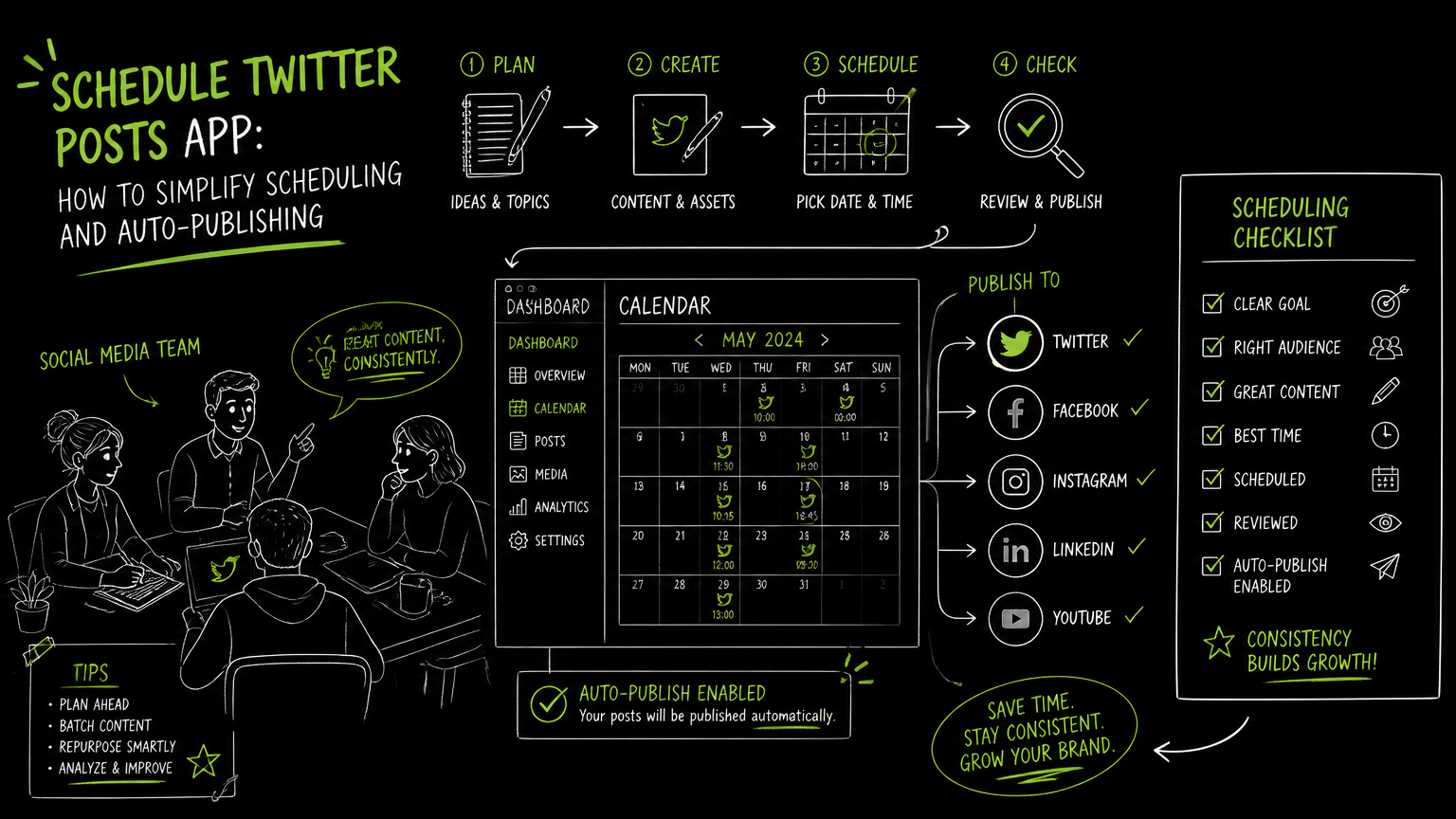
It is 4:40 p.m., the product marketer has three launch posts, the founder wants one rewritten, and the social manager is trying to remember which X/Twitter account is approved for tomorrow morning. If you are figuring out how to schedule tweets without creating a second spreadsheet-shaped job, the answer is not just “pick a scheduler.” It is to design a workflow that makes drafting, review, timing, media handling, and publishing predictable.
This guide gives you a practical way to choose and run a Twitter/X scheduling workflow without overbuying or missing basic publishing checks.
Quick Answer
Quick answer: To learn how to schedule tweets, decide whether you need native scheduling, a dedicated Twitter/X scheduler, or a multi-platform social media scheduling tool. Compare calendar visibility, auto-publishing, media handling, account management, approval workflow, limits, and mobile usability before committing your team’s posting process to one app.
What should a schedule Twitter posts app actually solve?
A schedule Twitter posts app should reduce publishing coordination work, not simply move drafts from one text box to another.
For a B2B team, Twitter/X scheduling usually sits inside a broader workflow: product launches, founder posts, event reminders, customer education, hiring announcements, and campaign amplification. The scheduler becomes useful when it prevents missed handoffs and last-minute publishing confusion.
The core problem is rarely “Can you schedule posts on Twitter?” The harder question is: can your team reliably move from idea to approved post to published message without losing context?
A good scheduling setup should help with:
- Drafting posts ahead of time for launches, webinars, campaigns, and announcements.
- Seeing scheduled content on a calendar so teams avoid collisions.
- Managing multiple accounts when brands, executives, regions, or business units post separately.
- Handling media files such as images and videos without hunting through shared drives.
- Auto-publishing when posts are ready, so a person does not need to manually publish every time.
- Keeping repeatable workflows for review, edits, and final checks.
Quick takeaway: The best scheduler is the one that removes the most handoff risk from your actual publishing process, not the one with the longest feature list.
A solo founder may only need a simple queue. A marketing team managing several profiles needs stronger calendar visibility, account separation, and publishing limits that match campaign volume.
How to schedule tweets with a repeatable workflow
The safest way to schedule posts is to separate content planning from final publishing.
Here is a practical workflow you can use with a native scheduler or a dedicated social media scheduling tool.
1. Create an intake list before opening the scheduler
Start with a simple list of post requests. Include:
- Campaign or business goal
- Target account
- Draft copy
- Required media
- Desired publish date or window
- Reviewer or owner
- Status: draft, needs review, approved, scheduled, published
This prevents the scheduler from becoming the first place where strategy decisions happen.
2. Group posts by campaign, not just by date
A launch thread, a webinar reminder, and a partner announcement may all land in the same week. If you only sort by date, you may miss message overlap.
Group posts by campaign first, then place them on the calendar.
Campaign grouping makes it easier to spot duplicated claims, missing assets, and conflicting calls to action.
3. Prepare media before scheduling
Do not schedule copy and then “add the image later” unless your team has a reliable reminder system.
For image or video posts, confirm that the file is final, named clearly, and stored somewhere your publisher can access. If the scheduling app includes media upload and file management, use folders or naming conventions that map to campaigns.
Watch out: The most common scheduling failure is not the timer. It is a missing asset, wrong account, or outdated draft that looked final when it was queued.
4. Schedule only approved posts
Keep draft and approved content separate. A scheduler full of half-approved posts becomes risky because it looks operationally finished.
Use a rule such as:
- Draft copy stays outside the publishing queue.
- Approved copy goes into the scheduler.
- Anything scheduled must have an owner and final asset.
This is boring, but it prevents accidental publishing.
5. Review the calendar before posts go live
Before a busy week, review the full Twitter/X calendar for:
- Repeated announcements
- Posts too close to each other
- Outdated campaign language
- Missing media
- Wrong profile selection
- Time-sensitive posts that no longer make sense
A scheduled post is not a finished post until it has survived a calendar review.
6. Confirm publishing after the post goes out
Even with auto-publishing, build a simple confirmation habit. Check the live post, link, media, and account.
This is not advanced analytics. It is operational hygiene.
A scheduler automates publishing, but your team still owns the message.
Twitter scheduling tool checklist for B2B teams
A Twitter scheduling tool should be evaluated against workflow risk, team complexity, and publishing volume.
Use this checklist before choosing a tool or migrating from your current setup.
| Need | What to check | Why it matters |
|---|---|---|
| Calendar planning | Does the tool show scheduled posts in a calendar or posting view? | A calendar helps teams see launch density, campaign timing, and gaps before posts go live. |
| Auto-publishing | Can approved posts publish automatically to X/Twitter? | Manual publishing creates avoidable handoff risk, especially across time zones or busy campaign days. |
| Multiple accounts | Can the tool manage connected accounts or account groups? | B2B teams often separate brand, executive, regional, or product profiles. |
| Media handling | Can you upload, organize, and reuse files? | Images and videos are common sources of last-minute publishing delays. |
| Profile limits | How many social profiles are included? | A tool that works for one account may become restrictive when more teams or brands join. |
| Scheduled post limits | How many posts can be scheduled under the plan? | Campaign-heavy teams need enough scheduled post capacity for launches and recurring content. |
| Platform coverage | Does it support only X/Twitter or multiple social platforms? | Multi-platform tools can simplify operations when the same campaign spans LinkedIn, Instagram, Facebook, YouTube, Threads, Pinterest, TikTok, and X/Twitter. |
| Mobile workflow | Can the team review or schedule from the devices they actually use? | If mobile scheduling is part of your workflow, test it directly before rollout. |
| Approval process | How will drafts become approved posts? | Even if approval happens outside the tool, the process must be explicit. |
| Failure checks | What happens when an account connection, media upload, or post format fails? | Teams need a way to catch operational issues before launch day. |
Decision rule: If scheduling saves ten minutes but adds uncertainty about which account, asset, or draft is final, the workflow is not simpler.
For very small teams, a heavyweight approval process may be overkill. For teams publishing across several accounts, the lack of approval discipline becomes expensive quickly.
Can you schedule posts on Twitter without a dedicated app?
You may be able to schedule posts directly through X/Twitter, but a dedicated app becomes more useful when scheduling is part of a team workflow.
The practical split is simple:
- Use a native scheduler when one person manages a small number of posts.
- Use a dedicated scheduler when multiple people, accounts, assets, or platforms are involved.
Native scheduling can be enough for straightforward posting. The trade-off is that your broader campaign workflow may still live in documents, spreadsheets, chat threads, and asset folders.
A dedicated scheduler is most useful when it becomes the shared operational layer for publishing.
Native scheduling may be enough when:
- One person owns the account.
- Posting volume is modest.
- You do not need multi-platform coordination.
- Media handling is simple.
- Approvals happen informally.
A scheduling app is usually worth evaluating when:
- Several people draft or review posts.
- You manage multiple X/Twitter accounts.
- Posts are part of campaign calendars.
- You publish across several social networks.
- Media assets need to be uploaded and organized.
- You want auto-publishing from a central dashboard.
Native scheduling is a publishing feature; a scheduling app is usually an operations tool.
That distinction matters because most B2B scheduling problems are operational.
How should teams manage bulk post scheduling?
Bulk scheduling should be treated as campaign operations, not mass publishing.
A “bulk post Twitter scheduler” can sound like a shortcut, but volume increases review risk. More scheduled posts means more chances for outdated copy, duplicate messaging, or the wrong asset to sit quietly in the queue.
Use this process before scheduling a batch.
Step 1: Define the batch
Create a batch around one business context:
- Product launch
- Event promotion
- Webinar reminder sequence
- Hiring campaign
- Content distribution
- Executive visibility campaign
Do not mix unrelated posts just because they are ready at the same time.
Step 2: Assign one owner
One person should own the batch from upload to calendar review. Other people can write or approve, but one owner should know what is scheduled and why.
This avoids the “I thought someone else checked it” problem.
Step 3: Review posts as a sequence
Read the scheduled posts in publish order.
Ask:
- Does each post still make sense without internal context?
- Are links, assets, and calls to action aligned?
- Are the posts too repetitive?
- Is any message time-sensitive?
- Does the campaign have a clear start and finish?
Step 4: Leave room for live updates
Do not fill every available slot. B2B teams often need space for news, customer-facing updates, event changes, or executive edits.
A fully packed calendar looks efficient until one urgent post needs a place to go.
Tip: Keep a small amount of unscheduled capacity in the calendar during launch weeks. Flexibility is part of a reliable scheduling system.
Mini-example: before and after
Before: A product marketer schedules eight launch posts in one sitting. Two use an old product phrase, one has the wrong image, and the founder asks for a launch-day rewrite after everything is queued.
After: The team creates a launch batch, assigns one owner, uploads final assets first, reviews the calendar in order, and schedules only posts marked approved.
The second workflow takes more discipline upfront, but it reduces launch-day cleanup.
What limits should you verify before choosing a Twitter scheduler?
Before choosing a scheduling app, verify the limits that affect your actual publishing month.
Most teams compare features first and limits later. That is backwards. Limits determine whether the tool fits your operating model.
Check these areas before rollout:
Scheduled post capacity
If your team schedules campaigns ahead of time, confirm how many scheduled posts are included in the plan. A tool can feel generous during a trial and restrictive during a launch month.
Connected profiles
Count every social profile you need to manage, not just the main brand account. Include X/Twitter profiles, LinkedIn pages or profiles, Instagram accounts, Facebook pages, YouTube channels, Threads accounts, Pinterest accounts, and TikTok accounts if they are part of your workflow.
Upload volume and file size
If your posts use images or videos, review upload limits and file size limits. Media-heavy teams should not treat storage and upload capacity as secondary.
Platform support
Confirm that the platforms you use are supported for the type of publishing you need. A tool might support a platform generally but not every format or workflow your team expects.
Account connection behavior
Social scheduling tools rely on connected accounts. Verify how connections are stored, grouped, refreshed, and repaired when a connection breaks.
Mobile expectations
If your team expects to schedule tweets on mobile, test the exact mobile workflow before adopting the tool. Do not assume desktop and mobile behavior are identical.
Test the workflow you will actually use, not the workflow shown in a polished demo.
Common scheduling mistakes and how to fix them
Most scheduling mistakes come from unclear ownership, not lack of effort.
Here are the ones that show up in real B2B workflows.
| Mistake | Why it happens | Specific fix |
|---|---|---|
| Scheduling drafts too early | Teams use the scheduler as a writing space. | Only schedule posts marked approved. Keep drafts in a separate status. |
| Choosing the wrong account | Multiple profiles look similar in a busy dashboard. | Add an account check to the final review step. Use clear profile names where possible. |
| Forgetting media | Copy is ready before the image or video is final. | Require media to be uploaded before scheduling. |
| Overloading launch day | Every stakeholder wants their post in the same window. | Review the calendar by campaign and leave space for urgent updates. |
| Treating bulk scheduling as final | A batch upload feels complete once it is queued. | Read the calendar in publish order before the first post goes live. |
| Ignoring plan limits | The tool fits a normal week but not a campaign month. | Compare scheduled post, profile, upload, and file size limits before buying. |
| Assuming mobile support | Someone expects to schedule or edit from a phone. | Test mobile scheduling as part of the evaluation process. |
| Skipping post-publish checks | Auto-publishing is mistaken for full quality control. | Confirm the live post, account, link, and media after publishing. |
Important: Auto-publishing removes the manual posting step; it does not remove the need for editorial review, account checks, or live confirmation.
The practical fix is to define a small number of non-negotiable checks and repeat them every time.
When DOHOO may fit
DOHOO may fit teams that want social media scheduling and auto-publishing across multiple platforms from one dashboard.
DOHOO is positioned as a social media automation platform for creating, scheduling, and publishing content across social platforms. Its verified platform coverage includes TikTok, Instagram, Facebook, YouTube, X/Twitter, Threads, LinkedIn, and Pinterest.
DOHOO includes calendar/posting functionality, connected accounts and connection groups, and media upload and management with file lists, direct file access, and folder management.
Its public plans list these scheduling-related limits:
| Plan | Monthly price | Included profiles | Scheduled posts | Uploads/month | Max file size | API access |
|---|---|---|---|---|---|---|
| Blogger | $19.99/mo | 4 | 90 | 90 | 1 GB | No |
| Business | $39.99/mo | 15 | 250 | 250 | 2 GB | Yes |
| Agency | $79.99/mo | 30 | 550 | 550 | 4 GB | Yes |
DOHOO supports auto-posting to 8 social networks from one dashboard.
That makes it most relevant if your Twitter/X scheduling problem is part of a broader multi-platform publishing workflow, not if you only need to queue an occasional single-account post.
Key takeaways
A Twitter/X scheduler is worth evaluating when it reduces coordination risk across drafts, approvals, accounts, media, timing, and publishing.
Keep these points in mind:
- Start with your workflow, not the tool category.
- Use native scheduling for simple, single-owner posting.
- Evaluate scheduling apps when you manage multiple accounts, campaigns, or platforms.
- Treat the calendar as a review surface, not just a timer.
- Schedule only approved posts with final media attached.
- Verify limits for profiles, scheduled posts, uploads, file size, and platform support.
- Test mobile scheduling directly if your team depends on it.
- Auto-publishing is useful, but it does not replace editorial quality control.
A good scheduler makes the publishing process calmer before the post goes live.
FAQ
Can you schedule tweets?
Yes, tweets can be scheduled through native options or third-party scheduling tools, depending on your workflow and platform access. For business teams, the main decision is whether simple scheduling is enough or whether you need a calendar, multi-account management, media handling, and auto-publishing.
How do I choose between a free Twitter scheduler and a paid tool?
Choose based on workflow risk. A free scheduler may be enough for light single-account posting, while a paid tool may be easier to justify when multiple people, accounts, campaigns, or platforms are involved. Always check scheduled post limits, profile limits, and media handling before relying on a free option.
Is bulk scheduling a good idea for Twitter/X?
Bulk scheduling is useful when posts belong to a planned campaign, but risky when used to queue unreviewed content. Assign one owner, review posts in publish order, confirm media and account selection, and leave calendar space for timely updates.
Can I schedule tweets on mobile?
Mobile scheduling depends on the tool or native workflow you use. If mobile scheduling matters to your team, test the exact process before adopting a scheduler, including editing, media upload, account selection, and final review.
What is the biggest mistake teams make with scheduled posts?
The biggest mistake is treating scheduled as the same as approved. A scheduled post can still contain old copy, missing media, the wrong account, or a timing conflict. Keep approval, scheduling, and final calendar review as separate steps.
Final takeaway
The best way to learn how to schedule tweets is to design a reliable publishing workflow first, then choose the app that supports it with the least friction.
If your team needs X/Twitter scheduling as part of a broader multi-platform calendar, DOHOO is worth trying for scheduling, connected account management, media organization, and auto-publishing across supported social networks. Start a trial and test it with one real campaign before moving your full calendar.