 DOHOO
DOHOO
Developer Api
Social Media Monitoring Dashboard: What Developers Need Before Publishing at Scale
 Vitalii
11 min read
Vitalii
11 min read
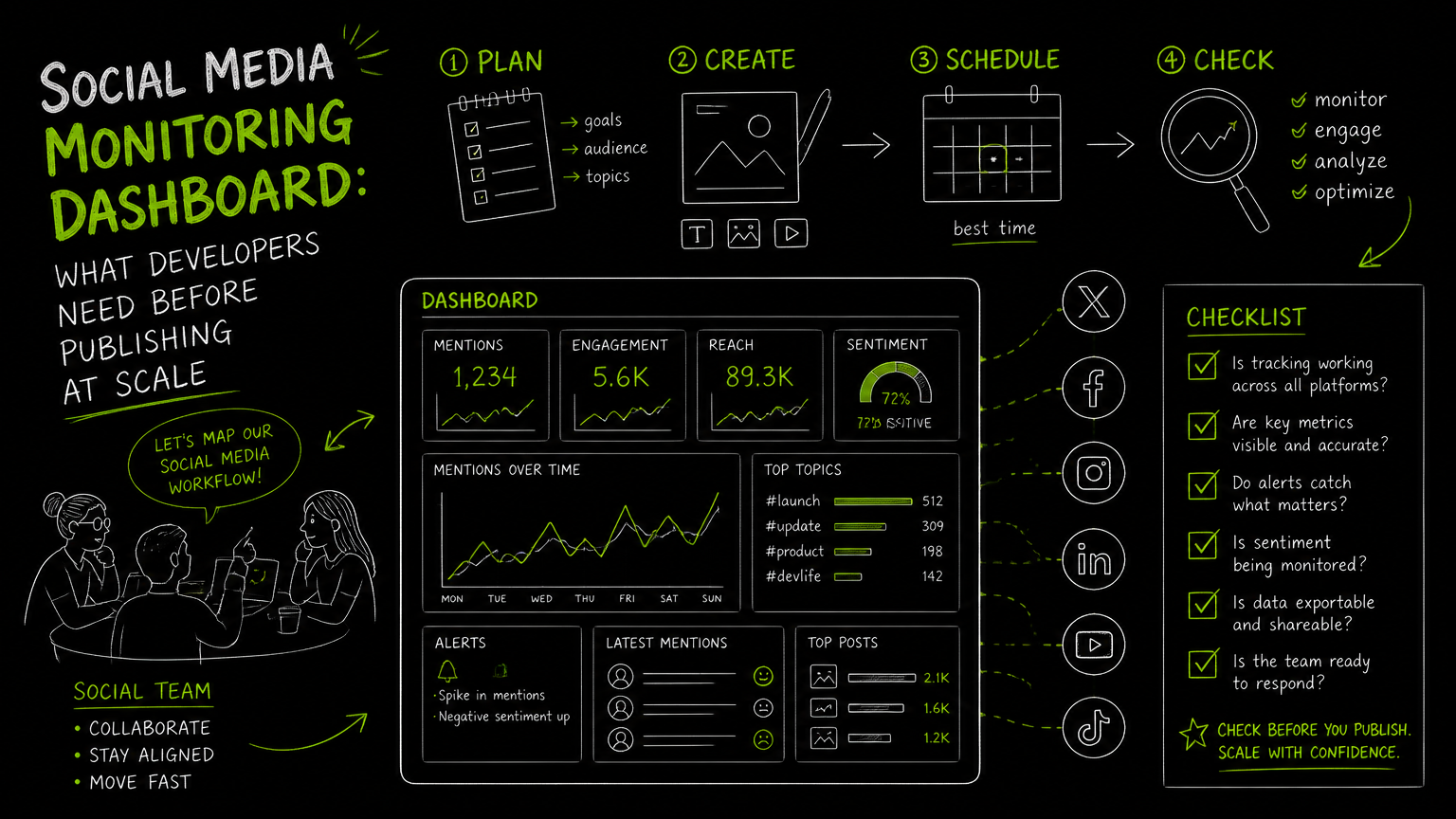
A product team ships a campaign builder, the marketing team connects five brand accounts, and suddenly the “simple” social media dashboard has to answer harder questions: which media file is ready, which account is authenticated, which post is scheduled, and which platform needs a different publishing flow?
The answer is not just a prettier chart. It is a workflow surface that helps developers, marketers, and operations teams publish with fewer blind spots.
This guide gives you a practical way to evaluate or design that dashboard before publishing volume makes the gaps expensive.
Quick Answer
Quick answer: A social media dashboard should show publishing readiness, account coverage, media status, scheduled posts, workflow ownership, and reporting context in one place. For developers, the critical checks are API access, authentication model, file upload flow, platform coverage, failure visibility, and limits before building automated publishing at scale.
Developer Checklist for a Social Media Dashboard
A useful dashboard should tell the team what action to take next, not just display social media activity.
Use this checklist when comparing a social media analytics dashboard, social media reporting dashboard, or internal publishing console.
| Need | What to check | Why it matters |
|---|---|---|
| Platform coverage | Confirm the exact platforms supported, such as Instagram, TikTok, Facebook, YouTube, X/Twitter, LinkedIn, Threads, or Pinterest. | “Social media” coverage often means different things across tools. Missing one platform can force a manual side workflow. |
| Account and profile management | Check whether the dashboard can handle multiple brand, client, or regional accounts. | Multi-account publishing becomes hard when status is buried per user instead of visible per profile. |
| Publishing readiness | Show whether each post has copy, media, destination accounts, scheduled time, and required approvals. | This prevents “ready-looking” posts from failing later because one required field was missing. |
| Media upload workflow | Verify how videos, images, thumbnails, folders, and file access are handled. | Media is often the slowest part of publishing workflows, especially when files are large or reused. |
| API access | Confirm whether publishing, account, media, and scheduling actions can be automated. | Developers need automation paths before volume increases, not after manual work becomes a bottleneck. |
| Authentication model | Check how API keys, connected social accounts, and key rotation are managed. | Weak operational visibility around authentication creates avoidable launch-day failures. |
| Scheduling visibility | Look for a calendar, queue, or posting view that shows what is scheduled and where. | A schedule that only exists inside API calls is hard for marketing and support teams to audit. |
| Failure handling | Ask how failed posts, expired credentials, upload errors, and platform-specific issues are surfaced. | A dashboard without failure states turns debugging into guesswork. |
| Reporting context | Decide which social metrics, post statuses, and exportable reports matter for your team. | Reporting should support decisions, not become a collection of disconnected widgets. |
| Plan limits | Review uploads, scheduled posts, profile counts, file size, API availability, and billing terms. | A technically good tool can still be a poor fit if limits do not match the workflow. |
Decision rule: If your team cannot answer “what is blocked, who owns it, and what happens next?” from the dashboard, it is not ready for scaled publishing.
A dashboard is only useful at scale if it shows the next operational decision, not just the last visible metric.
How Should a Monitoring Dashboard Work Before Publishing at Scale?
A scalable dashboard should follow the publishing lifecycle from asset intake to post verification.
Think of the dashboard as a shared control room for developers, marketers, editors, and account managers. Each role needs a different view, but the underlying workflow should be consistent.
A practical flow looks like this:
Connect accounts
- Add or verify social profiles.
- Show connection status per platform and account.
- Flag credentials that need attention.
Upload and organize media
- Upload videos, images, or other creative files.
- Store file metadata in a way the publishing workflow can reference.
- Keep folders or collections understandable for non-developers.
Create post drafts
- Attach copy, captions, hashtags, links, thumbnails, or platform-specific fields where needed.
- Make destination accounts visible.
- Separate “draft” from “ready to schedule.”
Review and approve
- Assign ownership.
- Track approval status.
- Make blocked items obvious.
Schedule or publish
- Show calendar placement or queue order.
- Confirm the destination platform and account.
- Keep scheduled posts auditable.
Monitor outcomes
- Surface publishing status, failures, and reporting context.
- Keep enough history to investigate what happened.
- Avoid hiding operational errors inside logs only developers can read.
Example: Before: a marketer asks in chat whether a video went live, a developer checks logs, and an account manager checks the platform manually. After: the dashboard shows the post, destination account, scheduled time, publishing status, and owner in one row.
The most important design choice is workflow visibility. Without it, every exception becomes a meeting.
What API, Authentication, and Media Choices Matter?
Developers should evaluate the dashboard as both a user interface and an automation surface.
A social media management dashboard may look complete in the browser but still fail as a developer workflow if publishing actions cannot be automated safely. The API layer determines whether the team can integrate posting into content systems, campaign builders, approval tools, or internal operations panels.
API access
Start with a simple question: which actions are available through an API?
For publishing workflows, developers typically need to inspect whether they can automate:
- Creating or sending posts
- Selecting destination accounts
- Uploading or referencing media
- Managing scheduled content
- Reading status or failure information
- Handling platform-specific publishing requirements
Do not assume API access is included on every plan. Some products reserve it for higher tiers, while others do not expose publishing actions at all.
Authentication
Authentication is the system that proves an application or user has permission to perform an action.
For developer-led workflows, look at:
- How API keys are created
- Whether keys can be rotated
- Whether keys are scoped or tied to an account
- How connected social accounts are represented
- What happens when a platform connection expires
- Whether the dashboard shows authentication problems clearly
Key rotation deserves special attention. Even if a team starts with one integration, production systems need a way to replace credentials without breaking every publishing job.
Watch out: A dashboard can have beautiful reporting and still be risky for developers if authentication failures only appear after a post fails.
Payload design
A payload is the structured data sent to an API when creating or updating something, such as a post.
For social publishing, your internal payload model should separate fields that are universal from fields that vary by platform. A generic caption may apply across several destinations, while a thumbnail, link preview, or video requirement may be platform-specific.
A practical internal post object might separate:
- Core post text
- Media file references
- Destination accounts
- Platform-specific options
- Scheduled time
- Approval status
- Internal owner
- External publishing status
The goal is not to force every platform into the same shape. The goal is to keep the parts that are shared consistent while leaving room for platform differences.
Media upload flow
Media upload is often where dashboards become operationally fragile.
Large files, repeated creative assets, folders, thumbnails, and direct file access all affect how smooth publishing feels. If the dashboard handles media poorly, the API may not matter much because every campaign still gets stuck in upload cleanup.
Look for a workflow that answers:
- Can users upload before creating the post?
- Can developers reference uploaded files later?
- Are files organized in folders or collections?
- Is there a way to manage direct file access?
- Are file size limits clear?
- Are upload failures visible to non-developers?
Media readiness should be visible before scheduling. Otherwise, teams end up scheduling posts that are only partially prepared.
Common Mistakes That Break Dashboard Workflows
Most dashboard problems come from treating publishing, monitoring, and reporting as separate worlds.
Here are the mistakes I see most often when teams move from manual posting to scaled workflows.
Mistake 1: Designing around charts before workflow status
A social media metrics dashboard can be useful, but charts do not tell an editor whether tomorrow’s post is missing a video file.
Fix: Put operational status near the top: draft, ready, scheduled, published, failed, needs review, or blocked.
Mistake 2: Treating every platform as identical
A single composer can be efficient, but platforms still have different publishing requirements and content formats.
Fix: Use shared fields where possible, then expose platform-specific fields only when they matter. Do not hide exceptions until the final publish step.
Mistake 3: Hiding API failures in developer logs
Logs are useful for engineers, but marketers and account managers need plain-language status.
Fix: Translate failures into dashboard states such as “account disconnected,” “media upload incomplete,” or “post not scheduled.”
Mistake 4: Ignoring plan limits during design
Upload volume, number of profiles, scheduled post limits, file size, and API access can shape the whole workflow.
Fix: Treat commercial limits as product requirements. Build your dashboard around the plan your team will actually use, not the best-case version of the tool.
Mistake 5: Building a dashboard template without ownership
A social media dashboard template can help you start, but it cannot decide who fixes a failed post.
Fix: Add owner, team, client, or campaign fields early. A dashboard with no owner field quickly becomes a read-only archive.
Tip: When two teams share a publishing workflow, add ownership before adding another report widget.
What Limits Should You Verify Before Choosing a Tool?
The best dashboard choice depends on operational fit, not feature volume.
Before selecting a social media monitoring dashboard or building one internally, verify the limits that can block real work.
Platform and account limits
Confirm exactly which platforms are supported and how many profiles or accounts are included.
This matters for agencies, franchises, regional teams, and B2B companies with separate product or employer-brand accounts. A tool that works for one brand account may not work for a multi-account workflow.
Upload and file limits
Ask about monthly upload limits, maximum file size, media storage behavior, and whether uploaded files can be reused.
Video-heavy workflows need more attention here than text-first workflows. The dashboard should make file constraints visible before a user attempts to publish.
Scheduled post limits
Scheduled post capacity matters when teams batch campaigns, launch across multiple channels, or prepare content calendars in advance.
Verify whether scheduled post limits are counted per workspace, per profile, per month, or some other unit. Do not guess.
API availability
API access is not always included in every plan.
If developers need to automate publishing from an internal CMS, creator portal, campaign tool, or approval workflow, API availability should be a buying criterion rather than a nice-to-have.
Reporting expectations
Clarify what the team means by “analytics.”
Some teams need a lightweight social media reporting dashboard for campaign reviews. Others need operational monitoring around publishing status and account health. These are related, but they are not the same dashboard.
Operational monitoring answers “can we publish and what is blocked?” Reporting answers “what happened after content went out?”
Buying process fit
For commercial teams, the dashboard must fit how people actually work.
Ask who will use it:
- Developers building automations
- Social media managers scheduling posts
- Marketing leads reviewing calendars
- Agencies managing client profiles
- Operators checking failed or blocked items
The same tool may feel excellent to one role and incomplete to another. Run the evaluation through real tasks, not a feature checklist alone.
When DOHOO May Fit
DOHOO may fit teams that need API-driven social publishing, media management, and multi-platform scheduling from one dashboard.
DOHOO is positioned as a social media automation platform for creating, scheduling, and publishing content across multiple social platforms. Its verified platform coverage includes TikTok, Instagram, Facebook, YouTube, X/Twitter, Threads, LinkedIn, and Pinterest.
For developer workflows, DOHOO supports API authentication through the X-API-Key header, and API keys can be obtained and rotated. Its developer capabilities include publishing endpoints for Facebook, Instagram, TikTok flow, YouTube, X/Twitter, LinkedIn, Pinterest, and Threads.
DOHOO also supports upload-oriented workflows, including an API for presigned upload URLs, file lists, direct file access, and folder management.
Plan fit matters. DOHOO’s public plans show API access is not included on Blogger, while Business and Agency include API access.
| Plan | Monthly price | Uploads / month | Included profiles | Scheduled posts | Max file size | API access |
|---|---|---|---|---|---|---|
| Blogger | $19.99/mo | 90 | 4 | 90 | 1 GB | No |
| Business | $39.99/mo | 250 | 15 | 250 | 2 GB | Yes |
| Agency | $79.99/mo | 550 | 30 | 550 | 4 GB | Yes |
This makes DOHOO most relevant if your dashboard problem is tied to publishing automation, file uploads, connected accounts, and scheduled posting across supported platforms.
Key Takeaways
A social media dashboard should be evaluated as a workflow system, not just a reporting screen.
- Start with the publishing lifecycle: account connection, media upload, draft, approval, schedule, publish, and monitor.
- Developers should verify API access, authentication, upload flow, payload structure, and failure visibility before committing.
- Marketing teams need calendar and status clarity, not just analytics widgets.
- Plan limits such as profiles, uploads, scheduled posts, file size, and API access can affect architecture.
- Treat social metrics and operational monitoring as related but separate needs.
- The strongest dashboard is the one that shows what is ready, what is blocked, and who should act next.
FAQ
What is a social media monitoring dashboard?
A social media monitoring dashboard is a shared interface for tracking social media workflows, account activity, publishing status, and reporting context. In developer-led environments, it should also expose API readiness, media status, authentication issues, and failed publishing actions.
What should a social media dashboard include?
It should include connected accounts, platform coverage, media readiness, draft and approval status, scheduled posts, publishing outcomes, and reporting views. For scaled workflows, ownership and failure states are just as important as charts.
Is a social media analytics dashboard the same as a publishing dashboard?
No. A social media analytics dashboard focuses on reporting and metrics, while a publishing dashboard focuses on preparing, scheduling, and sending content. Many teams need both, but developers should avoid mixing them so tightly that operational issues become hard to find.
Should developers build or buy a social media dashboard?
Build when the dashboard is deeply tied to internal systems, custom approval flows, or proprietary workflows. Buy when the main need is supported platform coverage, scheduling, uploads, account management, and standard reporting. Many B2B teams use a hybrid approach: buy the publishing infrastructure and build internal workflow layers around it.
Why does API access matter for social media publishing?
API access matters when teams want to automate posting from a CMS, campaign tool, creator portal, or internal approval system. Without API access, developers may be forced into manual steps even if the dashboard looks complete for individual users.
Final takeaway: The right social media dashboard makes publishing status, media readiness, account coverage, and developer automation visible before scale creates chaos. If your team needs API-based publishing across supported social platforms, review DOHOO’s developer workflow and confirm the plan limits that match your use case.