 DOHOO
DOHOO
Ai Social Content
Best Free Social Media Scheduling Tools: How to Build a Faster Content Workflow
 Vitalii
13 min read
Vitalii
13 min read
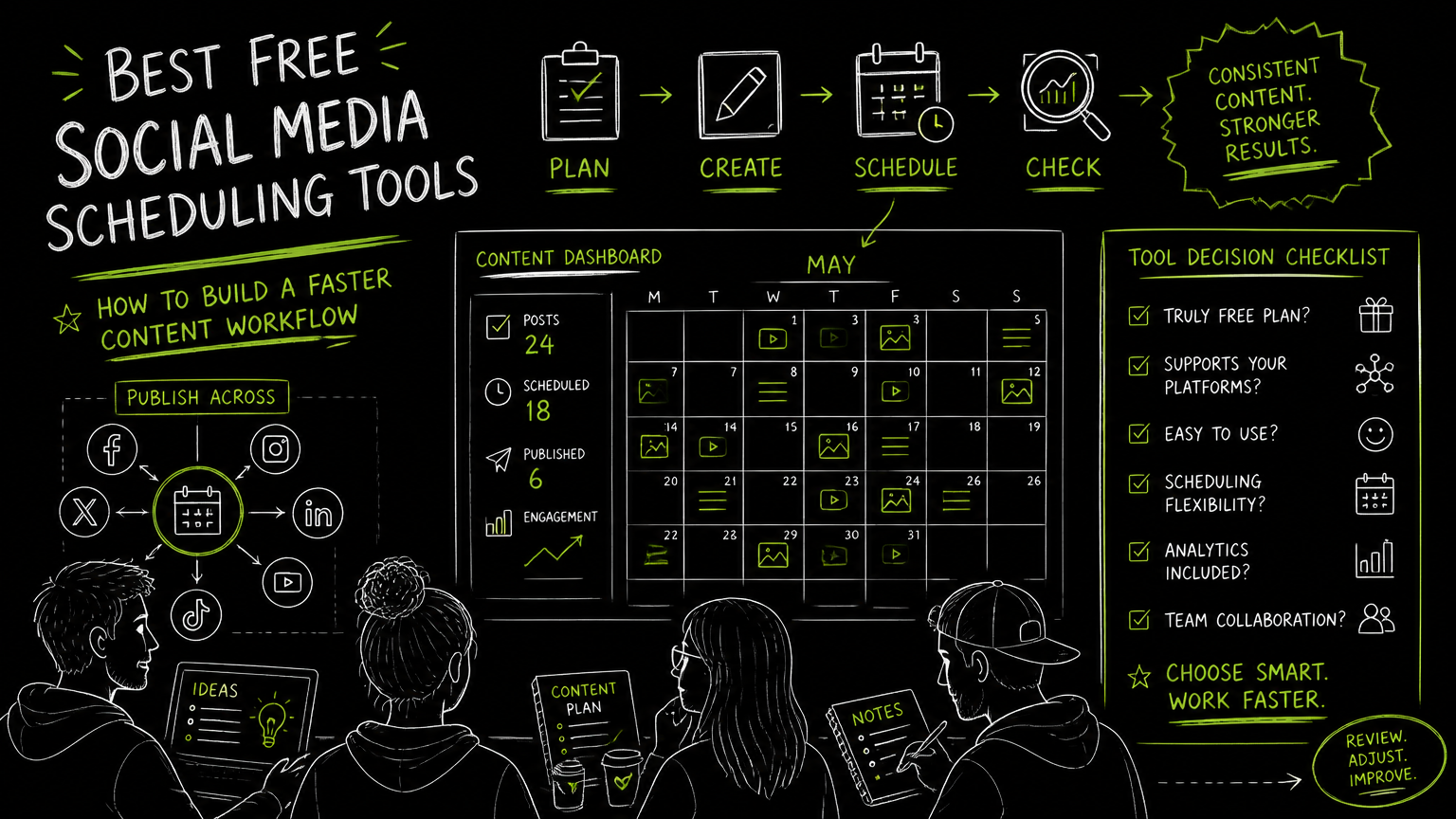
It usually starts with a Monday spreadsheet: captions in one tab, image links in another, approvals buried in chat, and someone asking whether the LinkedIn post already went out. A free scheduler can help, but only if your planner content workflow is clear before you pick the tool. The fastest path is not “find the biggest free plan”; it is to match scheduling limits, platform needs, approval steps, and content preparation work to how your team actually publishes.
This guide gives you a practical way to choose a free social media scheduling tool without rebuilding your workflow twice.
Quick Answer
Quick answer: The best free social media scheduling tool is the one that matches your planner content workflow: supported platforms, calendar view, media handling, account limits, approval process, and publishing reliability. Before choosing, test one real week of posts, verify free-plan restrictions, and confirm whether AI captions, hashtags, or transcription are actually included.
What Should a Free Social Media Scheduler Actually Do?
A free social media scheduler should reduce publishing friction without hiding critical limits that break your workflow later.
For a B2B team, the scheduler is not just a posting queue. It is the operating layer between campaign planning, creative production, stakeholder review, and publishing across channels such as LinkedIn, Instagram, Facebook, TikTok, YouTube, X/Twitter, Threads, and Pinterest.
At minimum, evaluate whether the tool can support these jobs:
- Put upcoming posts into a calendar or scheduled posting view.
- Store or attach media assets such as images and videos.
- Schedule posts to the platforms your team uses.
- Handle multiple social accounts if you manage brands, regions, executives, or business units.
- Support bulk preparation when campaigns have many posts.
- Make it obvious what is draft, scheduled, published, or blocked.
- Help prepare captions, hashtags, or transcripts if AI-assisted content prep matters to your workflow.
Decision rule: A free scheduler is only “free” if it does not create hidden manual work for your team. If every scheduled post still requires a spreadsheet, a reminder, and a manual upload, the tool is not solving the workflow problem.
The main trade-off is simple: free tools can be useful for small teams and lightweight calendars, but they often need closer inspection around limits, account support, publishing coverage, and AI-related features.
The Free Scheduler Decision Checklist
Use this checklist before comparing brand names, because most scheduling mistakes come from choosing for features instead of workflow fit.
| Need | What to check | Why it matters |
|---|---|---|
| Platform coverage | Which networks are supported for scheduling or publishing | A tool is not useful if your main channel still needs manual posting |
| Calendar workflow | Whether you can see drafts, scheduled posts, and publishing dates clearly | A visual calendar prevents duplicate posts and missed campaign dates |
| Account management | How many accounts, brands, or profiles you can manage | B2B teams often separate company pages, executive profiles, and regional accounts |
| Media handling | Whether images, videos, reels, carousels, thumbnails, or files fit your process | The content format often determines whether scheduling is practical |
| Bulk work | Whether uploads or mass scheduling are supported | Campaign launches and evergreen queues become painful one post at a time |
| AI content preparation | Whether captions, hashtags, or transcription are included and where they apply | AI is most useful when it removes prep work, not when it adds another review step |
| Review process | Whether your team can review copy and assets before publishing | Even a small approval gap can create brand, legal, or product messaging issues |
| Free-plan limits | Number of posts, users, accounts, channels, or features allowed | The limit matters more than the feature list |
| Publishing reliability | How failed posts, expired connections, and platform-specific restrictions are surfaced | A silent failure is worse than no scheduler |
| Upgrade path | What changes when your volume, users, or accounts grow | You want to avoid migrating calendars mid-campaign |
The strongest evaluation criterion is workflow fit before feature count.
A tool with fewer features may be better if it gives your team a clear calendar, supports the right channels, and makes publishing status easy to audit. A feature-heavy option can still fail if approvals, media formats, or account limits do not match the way your team works.
Which Free Social Media Scheduler Is Best for Your Team Size?
The best free scheduler depends on whether you are a solo marketer, a small B2B team, an agency, or a developer-supported marketing operation.
A solo marketer usually needs speed: one calendar, a small number of channels, and fast caption preparation. In this case, a simple scheduler with clear drafts and scheduled posts may beat a larger platform with extra menus.
A small B2B team needs visibility. If one person writes, another reviews, and a third owns the campaign, the tool must make status obvious. The practical question is not “Does it schedule?” but “Can everyone tell what is ready?”
An agency or multi-brand team needs account separation and bulk work. Managing several clients, regions, or product lines in one dashboard is where free plans can become restrictive quickly.
A developer-supported marketing team may care about automation and publishing endpoints. If your workflow connects internal tools to publishing, confirm whether API-based posting is available and which platforms it covers.
Important: Do not evaluate a free scheduler using your easiest post. Test it with the messiest real example: a video post, a carousel, a stakeholder edit, a last-minute date change, and a platform-specific caption.
Here is a practical mapping:
| Team type | Best-fit scheduler profile | Watch for |
|---|---|---|
| Solo founder or marketer | Simple content calendar and basic scheduling | Free limits, manual publishing gaps |
| Small B2B marketing team | Shared calendar, media management, review visibility | Approval confusion, account limits |
| Agency or multi-brand team | Multiple accounts, bulk upload, platform coverage | Client separation, volume restrictions |
| Video-heavy team | Video support, transcription or caption prep | Format-specific publishing rules |
| Developer-supported team | API publishing options and clear platform coverage | Authentication, error handling, media upload flow |
The tool you choose should fit the work that happens before publishing, not only the moment the post goes live.
How Do You Build a Faster Planner Content Workflow?
A faster planner content workflow starts by separating content planning, content preparation, scheduling, and publishing checks.
Many teams blur these steps. That is why calendars get messy. Someone writes captions inside a spreadsheet, uploads assets to a shared drive, asks for approval in chat, then copies the final version into a scheduler. When something changes, nobody knows which version is current.
A cleaner workflow looks like this:
Plan the campaign theme
- Define the campaign, audience, offer, and target platforms.
- Decide which posts belong to LinkedIn, Instagram, TikTok, YouTube, Facebook, X/Twitter, Threads, or Pinterest.
Create the content package
- Pair each caption with its asset.
- Add platform notes such as “carousel,” “video,” “article,” “reel,” or “company page post.”
- Keep the final caption separate from draft notes.
Prepare channel-specific versions
- Adjust the caption for the platform.
- Add hashtags where they are part of the workflow.
- Use transcription when video or audio needs to become usable copy.
Review before scheduling
- Confirm the message, asset, link, date, and platform.
- Mark the post as approved before it enters the queue.
Schedule in batches
- Batch work by campaign or week.
- Use bulk upload if your tool supports it and your content is structured enough.
Check publishing status
- Confirm what published, what failed, and what still needs manual action.
- Keep a short post-publishing review habit, especially after platform changes or account reconnections.
Tip: Treat the scheduler as the source of truth only after approval. Before approval, keep drafts easy to edit; after approval, protect the final version from accidental changes.
A simple before/after shows the difference.
Before: A product launch has six LinkedIn posts, three Instagram posts, and two short videos. Captions live in a document, files live in a folder, approvals live in chat, and the publishing calendar is updated manually.
After: Each post has one final caption, one asset, one platform, one owner, one date, and one status. The scheduler holds approved posts only. Drafting and review happen upstream.
The shift is one post, one owner, one status.
What Free-Plan Limits Should You Verify Before Choosing?
Free-plan limits matter because they decide whether the tool can support a normal publishing week, not just a demo.
Before choosing a free scheduler, verify the limits directly in the product, because free plans can vary by account, region, platform, and current packaging. Avoid assuming that a feature shown on a marketing page is included in the free tier.
Check these limits:
- Number of connected social accounts.
- Number of scheduled posts allowed.
- Number of users or collaborators.
- Platform-specific publishing support.
- Whether video, reels, carousels, articles, or thumbnails are supported.
- Whether bulk upload is included.
- Whether AI captions, hashtags, or transcription are included.
- Whether analytics are available and what they actually show.
- Whether API access exists, if your team needs automation.
- What happens when a post fails.
Watch out: “Supports Instagram” and “supports every Instagram format your team uses” are not the same claim. Confirm photos, videos, reels, carousels, and account type requirements before moving your calendar.
For B2B teams, LinkedIn deserves a specific check. If your workflow includes personal profiles and company pages, confirm whether the scheduler supports both in the way your team needs.
For video teams, confirm how YouTube, TikTok, Instagram, and thumbnails are handled. A scheduler that works well for text and image posts may still create manual work for video-heavy campaigns.
For teams using AI content workflows, check the exact AI feature. Caption suggestions, hashtag suggestions, and transcription are different jobs. A tool may support one without supporting the others.
Are AI Social Media Schedulers Worth Using for Free Workflows?
AI social media schedulers are worth evaluating when they reduce content preparation work that already exists in your process.
The most practical AI use cases in a scheduling workflow are caption drafting, hashtag preparation, transcription, and turning media into publishable copy. These tasks sit before publishing, where teams often lose time moving from raw ideas or video content into channel-ready posts.
AI is less useful when the team still has no campaign plan, no approval path, and no clear owner. In that case, AI can produce more drafts without solving the bottleneck.
Use this test:
| AI workflow | Good use | Bad use |
|---|---|---|
| Captions | Turning a clear post brief into a first draft | Replacing product or legal review |
| Hashtags | Preparing platform-specific options | Adding irrelevant tags without review |
| Transcription | Converting video or audio into editable text | Publishing transcripts without cleanup |
| Content preparation | Creating variants for different platforms | Making every channel sound identical |
The practical value of AI is less blank-page work, not automatic strategy.
If you evaluate an AI content calendar or AI social media scheduler, ask where the AI appears in the workflow. Is it inside caption writing? Hashtag preparation? Transcription? Or is it only a generic assistant outside the scheduling process?
Common Scheduling Mistakes and How to Fix Them
Most scheduling problems come from weak handoffs, not from the calendar itself.
Here are the mistakes I would fix first.
| Mistake | What it looks like | Practical fix |
|---|---|---|
| Choosing the tool before mapping the workflow | The team signs up, then realizes approvals still happen elsewhere | Map one full week of content before testing tools |
| Treating all platforms the same | The same caption is copied to LinkedIn, Instagram, TikTok, and X/Twitter | Create platform-specific versions before scheduling |
| Scheduling drafts | Posts go live with placeholder links or unapproved copy | Only approved posts enter the publishing queue |
| Ignoring media formats | A post works as an image but fails as a video, reel, carousel, or article | Test your most complex format during evaluation |
| Forgetting account ownership | A team member leaves and connections or permissions break | Use a clear owner for account access and publishing checks |
| Overvaluing AI | The team generates captions faster but review time increases | Use AI for first drafts, hashtags, and transcription, then review |
| Skipping failed-post checks | Everyone assumes the queue published correctly | Review status after scheduled posting windows |
Example: If your team publishes a weekly LinkedIn article, three company page posts, and Instagram carousels, do not test a scheduler with one plain text post. Build a sample week with the real formats and approval steps.
The fix is not always a bigger tool. Sometimes the fix is a stricter rule: no post gets scheduled until the caption, asset, platform, date, and approver are complete.
That rule creates fewer publishing surprises.
How Should You Compare Free Tools Without Getting Lost?
Compare free social media scheduling tools by running the same sample calendar through each option.
Do not rely only on feature pages. Build a small test set that reflects your real work. Include one simple text post, one image post, one video post, one platform-specific post, and one post that needs a stakeholder edit.
Then score each tool on a simple scale:
| Test area | Question to answer |
|---|---|
| Setup | How hard is it to connect the accounts you need? |
| Calendar | Can you quickly see what is planned and what is scheduled? |
| Drafting | Can captions and assets stay together? |
| AI preparation | Are captions, hashtags, or transcription useful in the actual workflow? |
| Scheduling | Can you schedule the formats your team uses? |
| Collaboration | Can reviewers understand what needs approval? |
| Recovery | What happens when a post fails or needs to change? |
| Growth | What breaks when you add more accounts, platforms, or volume? |
A good comparison includes both marketing users and whoever owns social account access. For B2B companies, that might be a social media manager, demand generation manager, content lead, founder, agency partner, or marketing operations specialist.
The best tool is the one your team can operate consistently on a busy week.
When DOHOO May Fit
DOHOO may fit teams that want one dashboard for creating, planning, and autopublishing social content across multiple platforms.
Based on the available product information, DOHOO is positioned as a social media automation platform for creating, scheduling, and publishing content across social platforms. It supports planning and autopublishing, managing multiple social accounts from one dashboard, bulk upload and mass publishing, file upload and media management, analytics, and AI-related workflows for captions, hashtags, and transcription.
DOHOO has confirmed platform-specific support for TikTok bulk scheduling, autopublishing, multiple TikTok accounts, and AI captions and hashtags. It also has confirmed Instagram support for photos, videos, reels, carousels, Instagram Business accounts, AI captions, hashtags, and bulk upload.
For broader publishing workflows, DOHOO supports publishing to TikTok, Instagram, Facebook, YouTube, X/Twitter, Threads, LinkedIn, and Pinterest. Its developer documentation includes publishing endpoints for Facebook, Instagram, TikTok flow, YouTube, X/Twitter, LinkedIn, Pinterest, and Threads.
This makes DOHOO most relevant to teams evaluating a multi-platform scheduler with AI-assisted content preparation, especially where captions, hashtags, transcription, bulk upload, and multi-account workflows are part of the operating model.
Key Takeaways
A free scheduler should be chosen around the workflow it must support, not the longest feature list.
- Start with one real week of content, including your hardest formats.
- Confirm platform coverage for the channels and account types you use.
- Treat calendar clarity, approval status, and publishing checks as core requirements.
- Verify free-plan limits before moving your actual calendar.
- Use AI for caption drafts, hashtags, transcription, and content preparation, not as a substitute for review.
- Test failure handling before trusting the queue.
- Upgrade only when the free workflow proves the tool fits your publishing process.
The best free social media scheduling tools help your team remove repeatable manual work while keeping ownership, review, and publishing status clear.
FAQ
What is the best free social media scheduler?
The best free social media scheduler is the one that supports your required platforms, content formats, account setup, and weekly publishing volume. Instead of choosing from a generic ranking, test one real content week in each tool and verify the free-plan limits before committing.
What should planner content include before scheduling?
Planner content should include the final caption, platform, asset, publish date, owner, approval status, and any platform-specific notes. For video or audio content, transcription may also be part of the preparation workflow.
Can I use a free scheduler for LinkedIn posts?
Yes, but you should verify whether the tool supports the LinkedIn workflow you need, such as personal profiles, company pages, articles, images, or videos. If LinkedIn is your primary B2B channel, test those exact formats before relying on the scheduler.
Are AI captions and hashtags enough to choose a scheduler?
No. AI captions and hashtags can help with content preparation, but they do not replace platform support, review workflow, media handling, and publishing reliability. Choose the scheduler that fits the full workflow, not just the AI feature.
When should a team move beyond a free social media scheduling tool?
Move beyond a free tool when account limits, post limits, collaboration needs, bulk publishing, AI preparation, analytics, or platform coverage start creating manual work. The trigger is not team size alone; it is when the free plan slows down a normal publishing week.
Final Takeaway
The best planner content workflow is simple: prepare complete posts, review them before scheduling, publish through a tool that supports your real platforms, and check status after posting.
If your team needs multi-platform scheduling, bulk publishing, AI captions and hashtags, transcription-related workflows, and one dashboard for social media automation, start a DOHOO trial and test it with one real week of content before migrating your full calendar.